2. Flashing Debian
OS | image | Debian
For assistance: contact CTHINGS.CO Support at support.cthings.co.
2.1. Goals
This guide explains how to flash the Edge IoT Gateway XS using the NXP UUU utility.
2.2. Prerequisites
You will need:
A CTHINGS.CO Debian BSP
.zippackage for Edge IoT Gateway XS containing:Bootloader binary (
flash.bin)Root filesystem image (
*.img)UUU script needed for flashing bootloader and image (
uboot.auto)(Optional) Integrity checksum (
*.sha256)
Flashing tool: NXP UUU
USB drivers required by your host operating system
2.3. Steps
2.3.1. Installing NXP UUU
Follow the instructions here (it is recommended to use a Linux-based host computer): https://github.com/nxp-imx/mfgtools
If you would like to install the uuu utility to your computer, optionally run
sudo make install after compiling.
2.3.2. Preparing the image files
Download the Debian BSP package for Edge IoT Gateway XS from CTHINGS.CO and
extract the .zip file on your host computer.
The package contains the Debian image and the xs_flash.bin flashing binary.
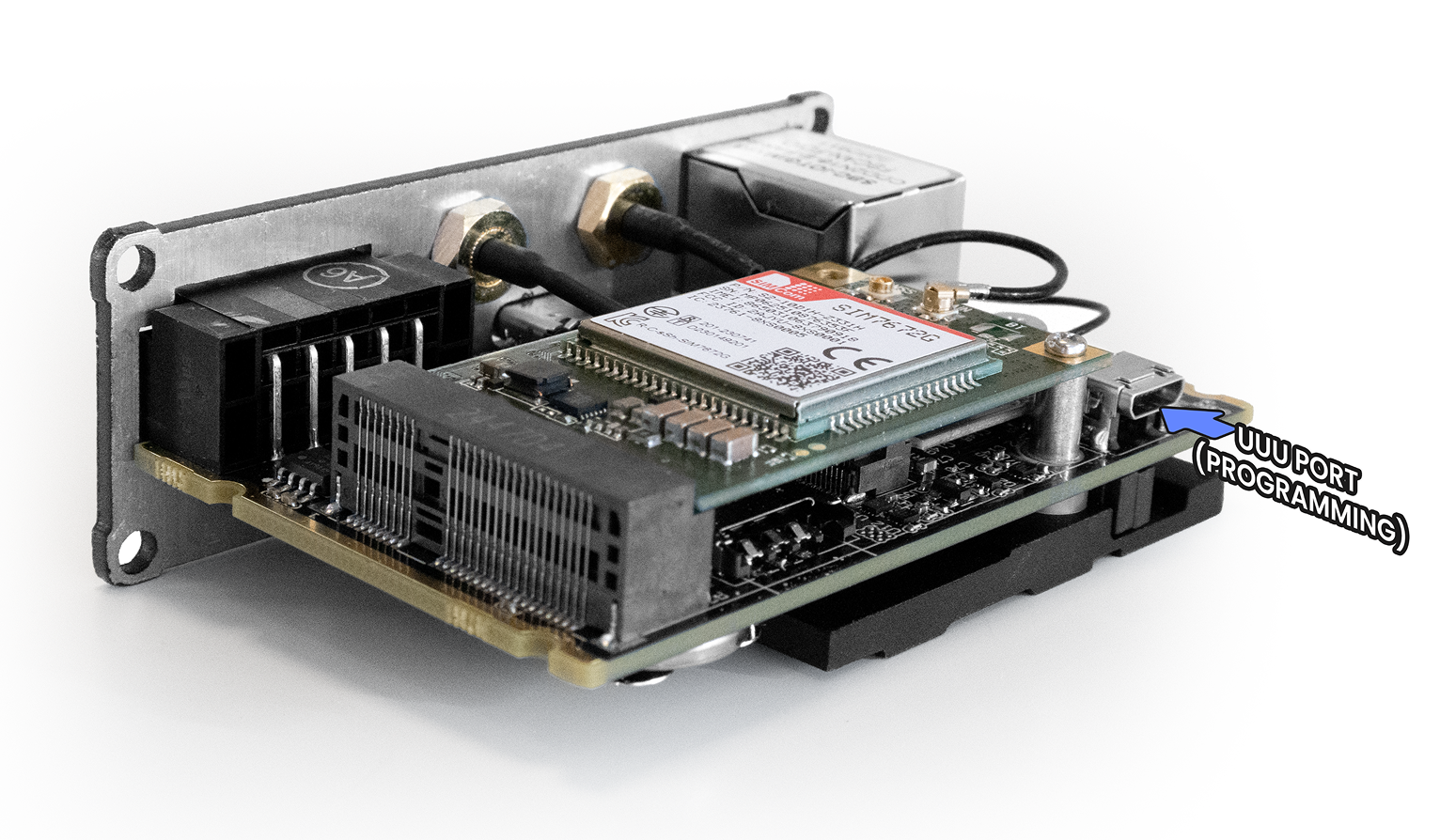
2.3.3. Accessing the UUU port
Power off the gateway.
Connect the micro-USB interface to your host computer. This is the NXP UUU interface.
Power on the device by long-pressing the ON button for approximately 1-2 seconds. The gateway should be detected automatically by the UUU tool.
2.3.4. Flashing the full eMMC image
Run the command from the directory containing the extracted BSP files.
Replace cthingsco-edge-gw-xs-debian-bookworm-base-<date>.img with the image
filename provided in your package.
Edge IoT Gateway XS
$ sudo uuu -b uboot.auto xs_flash.bin cthingsco-edge-gw-xs-debian-bookworm-base-<date>.img
.\uuu.exe -b uboot.auto xs_flash.bin cthingsco-edge-gw-xs-debian-bookworm-base-<date>.img
2.3.5. First boot
After the flashing process completes:
Disconnect power.
Wait 1-2 seconds.
Power on the gateway.
On first boot, the Debian system resizes the filesystem and then reboots automatically. After this automatic reboot, the device is ready to use.
Note
To obtain the image and firmware, please contact CTHINGS.CO Support at support.cthings.co.